> For the complete documentation index, see [llms.txt](https://developers.make.com/llms.txt). Markdown versions of documentation pages are available by appending `.md` to page URLs; this page is available as [Markdown](https://developers.make.com/custom-apps-documentation/get-started/make-apps-editor/apps-sdk/manage-testing-and-production-app-versions.md).
# Manage testing and production app versions
When developing an application, to manage the production and test versions:
* the developer writes and tests the code with the test application in Make.
* the developer tracks changes in the local `git` repository, pulling changes from the test application.
* the developer pushes the changes to the production application from the local testing app when they finish the development and testing.
This process improves the maintenance and stability of the application because the development does not influence the production version of the application. In addition, all changes can be tracked in a `git` repository, providing a clear and organized development workflow.
## Prerequisites
To start the development of testing and production app versions, the following is needed:
* The production version of an app in Make. If you already have an app that is in use, use it as the production app.
* The cloned production version in a local workspace. [Clone the app to the local workspace](/custom-apps-documentation/get-started/make-apps-editor/apps-sdk/local-development-for-apps/clone-make-app-to-local-workspace.md), if you haven't done so already.
* The testing version of an app in Make. Create a new app in Make, with no content, that will function as the testing version of the app.
* Optional: use version control with Git. To properly track all changes in the local app, it is recommended to use a Git repository, for example, GitHub.
## Development flow
Below is a diagram explaining how a developer can develop testing and production app versions.
## Create a testing version of an app
First, [create a testing version of the Make app](/custom-apps-documentation/get-started/make-apps-editor/apps-sdk/local-development-for-apps/create-a-new-app-origin.md).
Once the origin for the testing app is successfully created, you need to deploy the current code from the app that already exists, which we can call "Production".
{% stepper %}
{% step %}
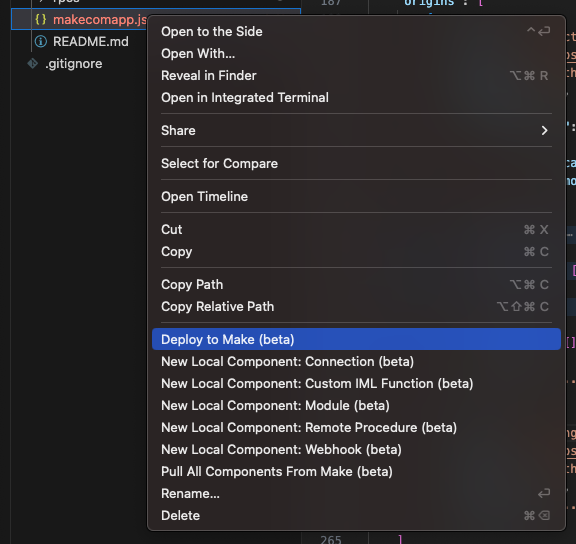
Right-click on the **makecomapp.json** file and select **Deploy to Make (beta)**.
{% endstep %}
{% step %}
Select the app origin that represents the testing app.
{% endstep %}
{% step %}
Press **Enter** to confirm the creation of the component.
If you don't want to create the component, click **Ignore permanently/do not map with remote** option.
{% endstep %}
{% endstepper %}
The app is deployed to Make.
## Develop the components in the testing app
Now, you can start developing new components or editing the current components in the Testing app in Make, and thoroughly test the app in the Scenario Builder.
## Pull changes from the testing app to the local app
Once you finish the development of new changes and components in the testing app, you can [push the changes to the local app](/custom-apps-documentation/get-started/make-apps-editor/apps-sdk/local-development-for-apps/pull-changes-from-make-app.md).
## Deploy the changes from the local app to the production app
To synchronize the changes made to the testing app with the production app, [follow these steps](/custom-apps-documentation/get-started/make-apps-editor/apps-sdk/local-development-for-apps/deploy-changes-from-local-app-to-make-app.md)
---
# Agent Instructions
This documentation is published with GitBook. GitBook is the documentation platform designed so that both humans and AI agents can read, navigate, and reason over technical content effectively. Learn more at gitbook.com.
## Querying This Documentation
If you need additional information that is not directly available in this page, you can query the documentation dynamically by asking a question.
Perform an HTTP GET request on the current page URL with the `ask` query parameter, and the optional `goal` query parameter:
```
GET https://developers.make.com/custom-apps-documentation/get-started/make-apps-editor/apps-sdk/manage-testing-and-production-app-versions.md?ask=&goal=
```
`ask` is the immediate question: it should be specific, self-contained, and written in natural language.
`goal` is optional and describes the broader end goal you are ultimately trying to accomplish on behalf of the user. GitBook uses it to tailor the answer towards what is most useful for that goal.
The response will contain a direct answer to the question and relevant excerpts and sources from the documentation.
Use this mechanism when the answer is not explicitly present in the current page, you need clarification or additional context, or you want to retrieve related documentation sections.
.png?alt=media)