# Initial setup in Make

{% hint style="info" %}
In our step-by-step examples, we use the Geocodify API. You can follow along with our example or you can select a different API to build your first custom app.
{% endhint %}

To set up your custom app for Geocodify:

{% stepper %}
{% step %}
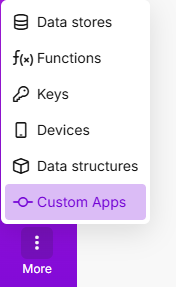
Log in to Make and go to the **Custom Apps** section.

<div align="left"><figure><img src="https://1562974717-files.gitbook.io/~/files/v0/b/gitbook-x-prod.appspot.com/o/spaces%2FNS0mCBwODiYtOVXjc6qf%2Fuploads%2Fgit-blob-1efd1c9470af52155577cf4738d3d1e73d991f2e%2Finitialsetup_accesscustomapps.png?alt=media" alt="" width="132"><figcaption></figcaption></figure></div>
{% endstep %}

{% step %}
In the upper-right corner, click **+ Create app**.
{% endstep %}

{% step %}
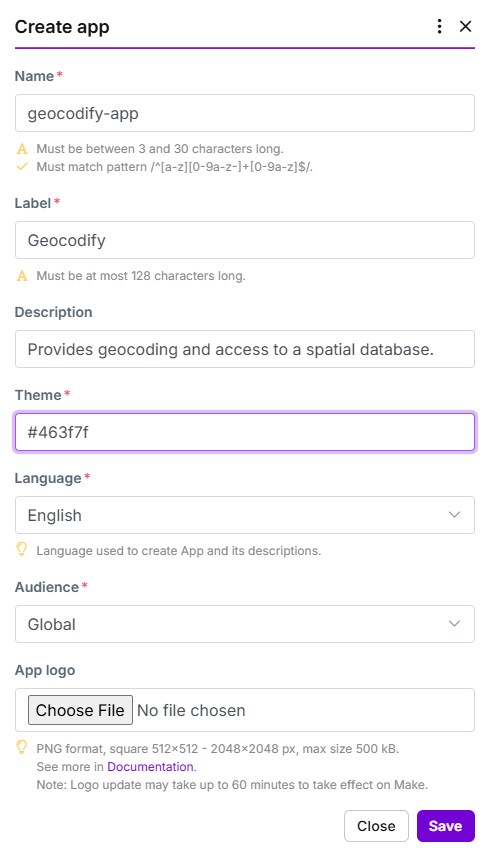
In the pop-up window, fill in the app details. The chart below contains the values to use for your Geocodify app.

<div align="left"><figure><img src="https://1562974717-files.gitbook.io/~/files/v0/b/gitbook-x-prod.appspot.com/o/spaces%2FNS0mCBwODiYtOVXjc6qf%2Fuploads%2Fgit-blob-004b52a8f19b8fcb7d26b24d1a8db9589ef823a2%2Fcreateapp_setup.png?alt=media" alt="" width="365"><figcaption></figcaption></figure></div>

<table><thead><tr><th width="150" valign="top">Field</th><th width="207" valign="top">Value</th><th valign="top">Description</th></tr></thead><tbody><tr><td valign="top"><strong>Name</strong></td><td valign="top">geocodify-app</td><td valign="top">A unique identifier for your custom app. This is an internal name and is not visible in the scenario builder. Must match the following Regex: <code>/^[a-z][0-9a-z-]+[0-9a-z]$/</code><br><br><br><br></td></tr><tr><td valign="top"><strong>Label</strong></td><td valign="top">Geocodify</td><td valign="top">Name of the custom app in the scenario editor.</td></tr><tr><td valign="top"><strong>Description</strong></td><td valign="top">Provides geocoding and access to a spatial database.</td><td valign="top">Optional: Description of the custom app.</td></tr><tr><td valign="top"><strong>Theme</strong></td><td valign="top">#46367f</td><td valign="top">Color of the app in the scenario editor. Specified with a hex code.</td></tr><tr><td valign="top"><strong>Language</strong></td><td valign="top">English</td><td valign="top">The language of your app.</td></tr><tr><td valign="top"><strong>Audience</strong></td><td valign="top">Global</td><td valign="top">Where the app is available. At the moment, this parameter doesn't have any effect.</td></tr><tr><td valign="top"><strong>App logo</strong></td><td valign="top"></td><td valign="top">Optional: Logo of the app used in the scenario editor.<br><br>For more information on logo specs, see the <a href="app-logo">App logo article</a>.</td></tr></tbody></table>
{% endstep %}

{% step %}
Click **Save**.
{% endstep %}
{% endstepper %}

You can now see your custom app listed on the Custom Apps page where you can view the [Make app environment](https://developers.make.com/custom-apps-documentation/create-your-first-app/apps-environment) to continue with the setup of the [connection](https://developers.make.com/custom-apps-documentation/create-your-first-app/apps-environment/connection), [Base](https://developers.make.com/custom-apps-documentation/create-your-first-app/apps-environment/base), and [module](https://developers.make.com/custom-apps-documentation/create-your-first-app/apps-environment/module) for your app.
