# Make a test HTTP call

{% hint style="info" %}
In our step-by-step examples, we use the Geocodify API. You can follow along with our example or you can select a different API to build your first custom app.
{% endhint %}

Now that you have [selected the editor you want to use](https://developers.make.com/custom-apps-documentation/get-started/make-apps-editor), we recommend completing these first steps before [building your first app](https://developers.make.com/custom-apps-documentation/create-your-first-app/overview):

1. [Get an API token from Geocodify](#get-an-api-token)
2. [Review the Geocodify API documentation](#review-the-api-documentation)
3. [Do a Postman test](#do-a-postman-test)
4. [Make an HTTP call](#make-an-http-call)

## Get an API token

To get your API token from [Geocodify:](https://geocodify.com/)

{% stepper %}
{% step %}
Got to the [Geocodify website](https://geocodify.com/) and click **Sign Up** to create an account.
{% endstep %}

{% step %}
Enter your details and click **Register** (or log in Google or GitHub).
{% endstep %}

{% step %}
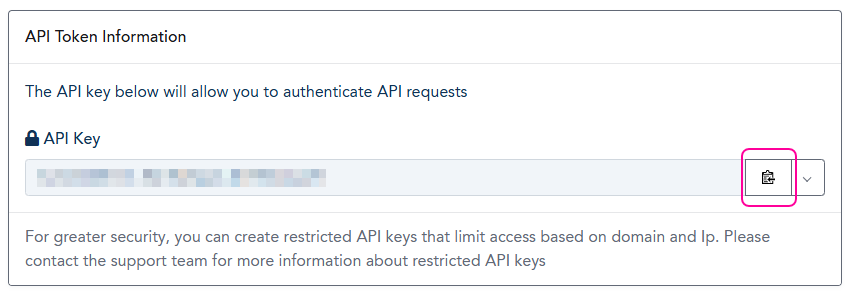
At the bottom of the **Overview** page in your dashboard, copy your **API Key** and store it in a safe place.

<div align="left"><figure><img src="https://1562974717-files.gitbook.io/~/files/v0/b/gitbook-x-prod.appspot.com/o/spaces%2FNS0mCBwODiYtOVXjc6qf%2Fuploads%2Fgit-blob-3b0afb863c71f87815f19b32dd7a4c16d32a580b%2Fgeocodify_api.png?alt=media" alt="" width="563"><figcaption></figcaption></figure></div>
{% endstep %}
{% endstepper %}

You will use the Geocodify API key later, when you create your app.

## Review the API documentation

To plan the HTTP call, study the [Geocodify API documentation](https://geocodify.com/api-documentation), paying particular attention to the information regarding authentication, the API Base URL, the API endpoints, and the query parameters for the Search API.

<table><thead><tr><th width="231" valign="top">API documentation section</th><th valign="top">Description</th></tr></thead><tbody><tr><td valign="top"><strong>Authentication</strong></td><td valign="top"><p>This section provides authentication details.</p><p><br>For this API you need to use an <strong>API key</strong>, which should be included in your request <strong>query string</strong> using the <code>api_key</code> parameter, along with the value that you obtained from the Geocodify website.</p></td></tr><tr><td valign="top"><strong>API Base URL</strong></td><td valign="top">This section provides the <strong>base URL</strong> that you will use to access all the API endpoints.<br><br>The base URL is <code>https://api.geocodify.com/v2</code></td></tr><tr><td valign="top"><strong>API Endpoints</strong></td><td valign="top"><p>This section lists all the available endpoints.</p><p><br>For this use case, you will use the <code>/geocode</code> endpoint to get the coordinates of a specific address.</p></td></tr><tr><td valign="top"><strong>Query parameters for the Search API</strong></td><td valign="top"><p><strong>api_key:</strong> The API key used for authentication.</p><p><strong>q:</strong> The address for which you want to retrieve the coordinates.</p></td></tr></tbody></table>

{% hint style="info" %}
The documentation doesn't specify the HTTP method, but since you are retrieving coordinates, you should use the **GET method**.
{% endhint %}

## Do a Postman test

It is good practice to test the HTTP call using Postman before building it in Make. This ensures that everything is working properly and helps you plan the HTTP call setup in Make.

{% stepper %}
{% step %}
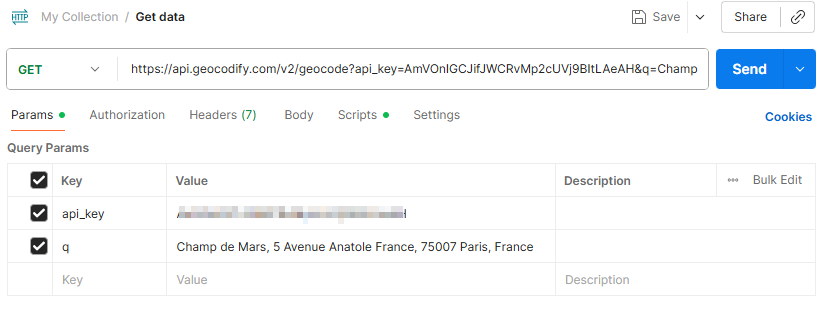
In [**Postman**](https://www.postman.com/)**,** create a new request and add the necessary elements to make the HTTP call:

<div align="left"><figure><img src="https://1562974717-files.gitbook.io/~/files/v0/b/gitbook-x-prod.appspot.com/o/spaces%2FNS0mCBwODiYtOVXjc6qf%2Fuploads%2Fgit-blob-52ba46152726b7aa9e1d5d35600f711103d0ffd4%2Fpostmantest.png?alt=media" alt="" width="563"><figcaption></figcaption></figure></div>

* **Method:** GET
* **URL (base + endpoint):** `https://api.geocodify.com/v2/geocode`
* **Query parameters:**
  * **api\_key:** your API key
  * **q:** address to search, for example Champ de Mars, 5 Avenue Anatole France, 75007 Paris, France
    {% endstep %}

{% step %}
Click **Send**.
{% endstep %}
{% endstepper %}

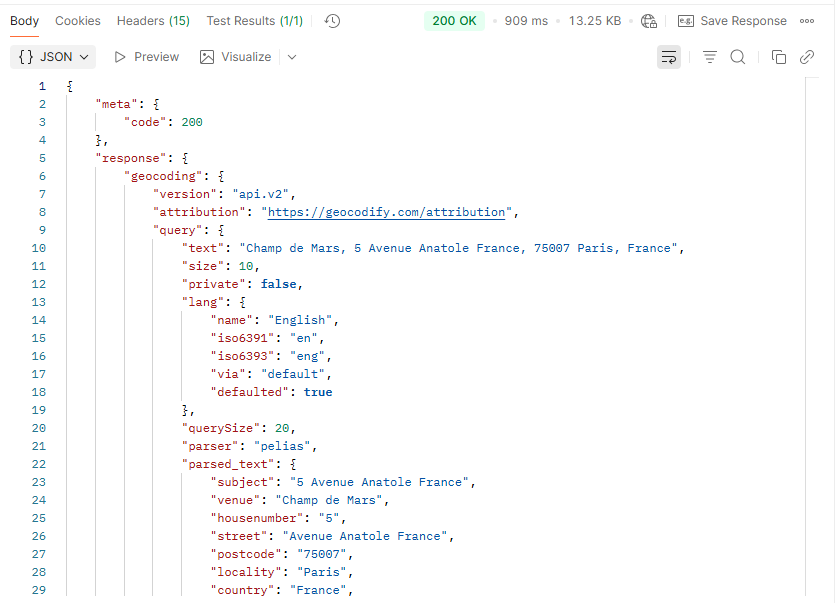
The API responds (`HTTP 200 OK successful response` status code) with a JSON file containing the address information and the API key.

If something is not working properly, use the error that the API returns to troubleshoot any issues.

<div align="left"><figure><img src="https://1562974717-files.gitbook.io/~/files/v0/b/gitbook-x-prod.appspot.com/o/spaces%2FNS0mCBwODiYtOVXjc6qf%2Fuploads%2Fgit-blob-2e6baf71ebbbbef796f6824b5aa5676df5d34eab%2Fpostmantestresult.png?alt=media" alt="" width="563"><figcaption></figcaption></figure></div>

## Make an HTTP call

After a successful Postman test, build your call using the HTTP module in Make.

According to the [Geocodify API documentation](https://geocodify.com/api-documentation), you need to provide an API key as a query parameter.

{% stepper %}
{% step %}
In the Scenario Builder, add the **HTTP > Make a request** module.
{% endstep %}

{% step %}
For **Authentication type**, select API key.
{% endstep %}

{% step %}
For **Credentials**, click **Create a keychain**.

Change the name of the new keychain if you wish, then fill in the following:

* **Key:** your Geocodify API key
* **API Key placement:** In the query parameters
* **API Key parameter name:** api\_key

<div align="left"><figure><img src="https://1562974717-files.gitbook.io/~/files/v0/b/gitbook-x-prod.appspot.com/o/spaces%2FNS0mCBwODiYtOVXjc6qf%2Fuploads%2FsfJ8HvVy0ZZvFvRsJipo%2Fnew_addnewkeychain.png?alt=media&#x26;token=24f3fd40-994f-4d03-90fe-57e7c20c72e3" alt="" width="328"><figcaption></figcaption></figure></div>
{% endstep %}

{% step %}
Click **Create**.
{% endstep %}

{% step %}
Add the necessary information for the API call, including the address for which you want to retrieve the coordinates:

* **URL** (base + endpoint): `https://api.geocodify.com/v2/geocode`
* **Method:** GET
* **Query parameters**: \
  Parameter 1 Name: q\
  Parameter 1 Value: Champ de Mars, 5 Avenue Anatole France, 75007 Paris, France
* **Parse response -** Yes (this allows you to map the response items if needed)
  {% endstep %}

{% step %}
Click **Save**.
{% endstep %}

{% step %}
Save your scenario and click **Run once**.
{% endstep %}
{% endstepper %}

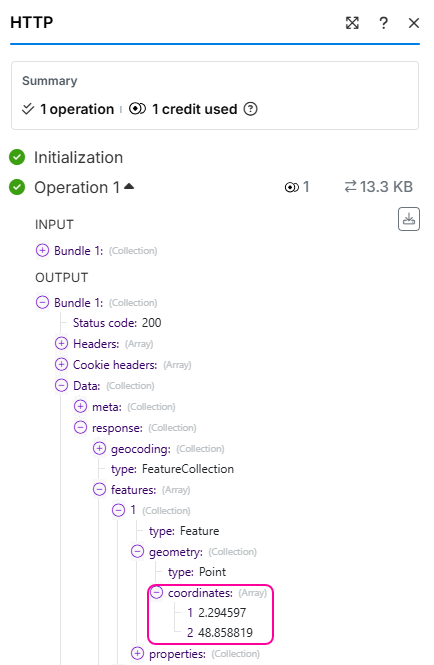
After a successful run, your module output can be found under **Output> Data > Response > Features> 1> Geometry> Coordinates**.

<div align="left"><figure><img src="https://1562974717-files.gitbook.io/~/files/v0/b/gitbook-x-prod.appspot.com/o/spaces%2FNS0mCBwODiYtOVXjc6qf%2Fuploads%2Fgit-blob-7bdcbf9d9f67c19da39c65084b36fa8ab568ac03%2Fhttptest_output.png?alt=media" alt="" width="326"><figcaption></figcaption></figure></div>

You are now ready to [create your custom app](https://developers.make.com/custom-apps-documentation/create-your-first-app/overview).