> For the complete documentation index, see [llms.txt](https://developers.make.com/llms.txt). Markdown versions of documentation pages are available by appending `.md` to page URLs; this page is available as [Markdown](https://developers.make.com/custom-apps-documentation/get-started/make-apps-editor/apps-sdk/local-development-for-apps/clone-make-app-to-local-workspace.md).
# Clone Make app to local workspace
{% hint style="warning" %}
Please be advised that this feature is in beta so it may encounter occasional bugs or inconsistencies.
{% endhint %}
To start the development of an app in a local directory or git repository, or start tracking changes in your app, you need to clone the Make app to the local workspace.
## Step 1: Open the local folder
Open the folder where you intend to store the app in Visual Studio Code.
Select the section that corresponds to your development setup:
* 'Local Directory' if you are working directly on your computer's file system
* 'Git Repository' if you are using version control with Git
The 'Git Repository' section describes the development in the Git repository using the [GitHub Desktop](https://desktop.github.com/) app. However, any preferred [GUI tool](https://git-scm.com/downloads/guis) or CLI can be used.
Local directory
1. Open Visual Studio Code and navigate to **File > Open Folder.**
2. In the file manager, select the folder where the app should be cloned.
3. In the pop-up window, click "Yes, I trust the authors" option.
The current local directory in Visual Studio is set.
Git repository using the GitHub Desktop app
1. Navigate to the GitHub Desktop app and open the repository where you intend to store the app.
2. Click **Open in Visual Studio Code**.
3. In the pop-up window, click "Yes, I trust the authors" option.
The current repository in Visual Studio is set.
## Step 2: Clone the app to the local folder
Once the repository in Visual Studio is set, you can proceed to cloning the app to the local folder.
{% stepper %}
{% step %}
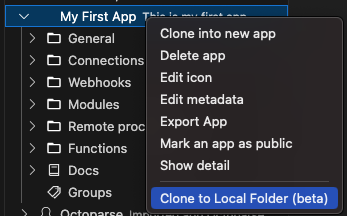
In the opened window of Visual Studio Code, go to the Make Apps Editor and right-click the app you wish to save to your repository. Select **Clone to Local Folder (beta)**.
{% endstep %}
{% step %}
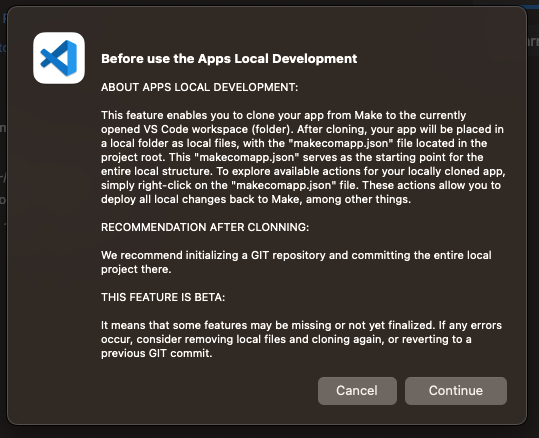
Read the text in the dialog window and confirm reading by clicking **Continue**.
{% endstep %}
{% step %}
Enter the workspace subdirectory name where the app should be cloned to.
If the subdirectory doesn't exist yet, it will be created. The default subdirectory is set to `src`. Click **Enter**.
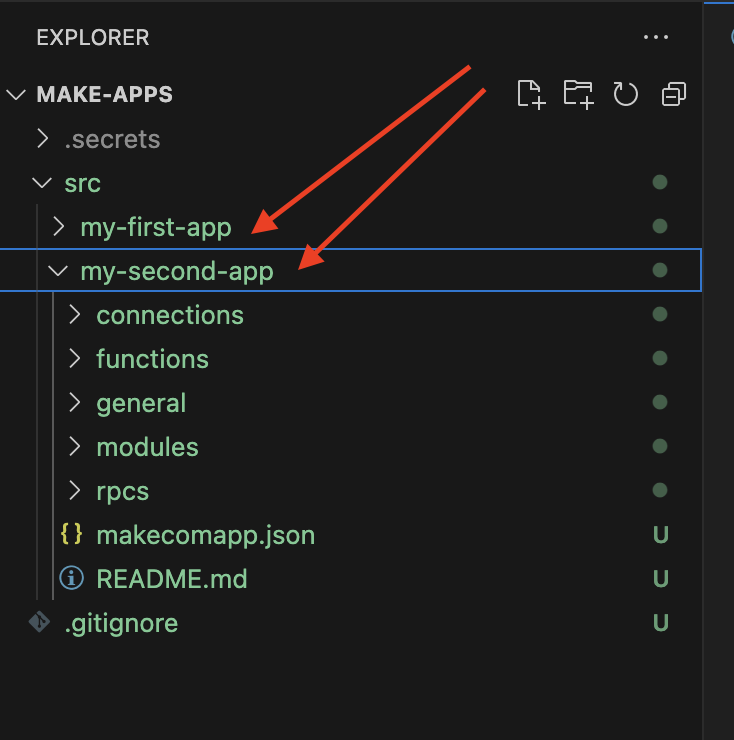
If you are going to store more than one app in the repository, you can create a subfolder by using the `src/app-name` path, where the `app-name` is the name of the app folder.
{% endstep %}
{% step %}
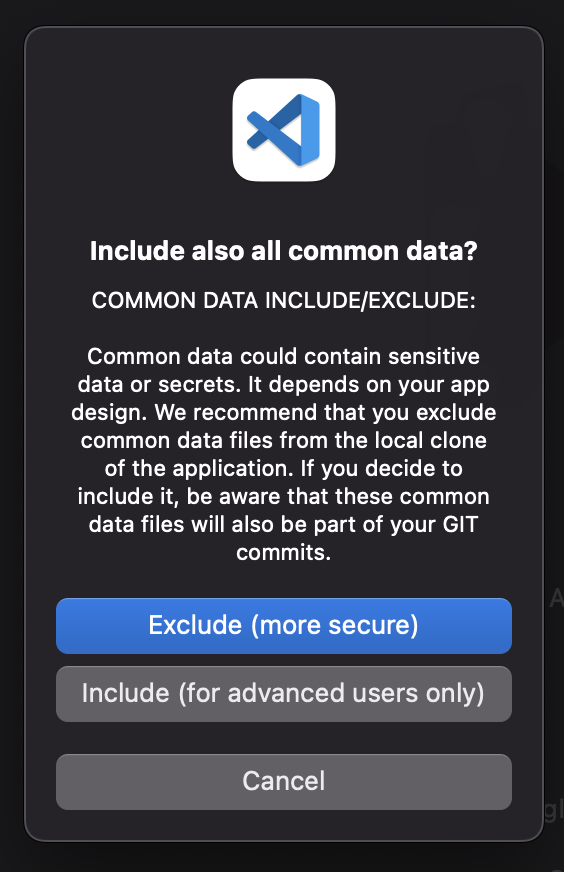
A dialog window asking whether [common data](/custom-apps-documentation/app-components/connections.md#common-data) should be included or not will pop up.
* **Exclude (more secure)** - Select, if your app contains sensitive data, such as Client ID and Secret. Common data will not be stored in your local workspace or a repository.
* **Include (for advanced users only) -** Select, if you want to store the common data in your local workspace or a repository. Be aware that storing common data outside of Make could potentially expose the app to vulnerabilities.
{% endstep %}
{% endstepper %}
The app is now cloned to the local folder.
## Step 3: Versioning the local app
Versioning is only available if you are using version control with Git.
The following steps describe the development in the Git repository using the [GitHub Desktop](https://desktop.github.com/) app as an example.
{% hint style="info" %}
The `.secrets` file with your Make API keys is only stored in the local folder. By default, the file is excluded from the git versioning.
{% endhint %}
To properly start the versioning of your app in the Git repository:
{% stepper %}
{% step %}
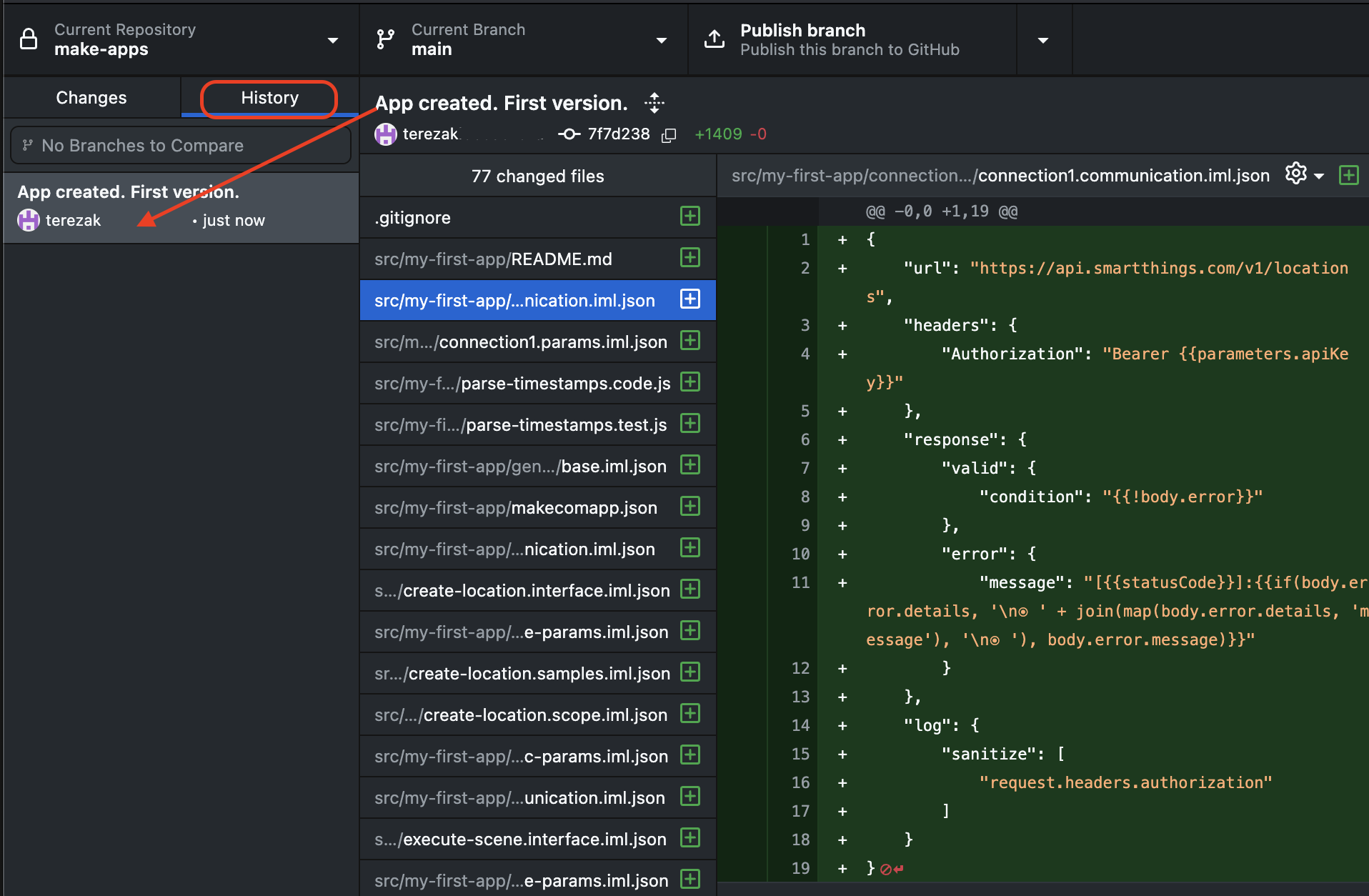
Go to the GitHub Desktop app and open the repository where you cloned your app. You will see a list of new files.
{% endstep %}
{% step %}
Enter the Summary of the commit and click **Commit to main**.
{% endstep %}
{% step %}
Optionally, click **Publish branch**.
{% endstep %}
{% endstepper %}
The first version of your app is logged. Every new change or a new component in the app will be considered a new change.
---
# Agent Instructions
This documentation is published with GitBook. GitBook is the documentation platform designed so that both humans and AI agents can read, navigate, and reason over technical content effectively. Learn more at gitbook.com.
## Querying This Documentation
If you need additional information that is not directly available in this page, you can query the documentation by asking a question.
Perform an HTTP GET request on the following URL with the `ask` and `goal` query parameters:
```
GET https://developers.make.com/custom-apps-documentation/get-started/make-apps-editor/apps-sdk/local-development-for-apps/clone-make-app-to-local-workspace.md?ask=&goal=
```
`ask` is the immediate question: it should be specific, self-contained, and written in natural language.
`goal` is what the user is ultimately trying to achieve, the reason they need the answer. Sharing it helps GitBook give you a better, more relevant answer. A goal is most helpful when it describes the outcome the user wants rather than restating the question. For example, with `ask=how do I create an API token`, a goal like `automate deployments from our CI pipeline` lets GitBook tailor the answer to that use case.
The response will contain a direct answer to the question and relevant excerpts and sources from the documentation.
Use this mechanism when the answer is not explicitly present in the current page, you need clarification or additional context, or you want to retrieve related documentation sections.
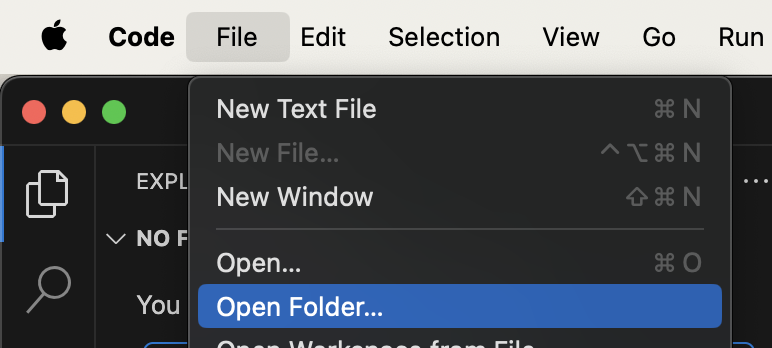 2. In the file manager, select the folder where the app should be cloned.
3. In the pop-up window, click "Yes, I trust the authors" option.
2. In the file manager, select the folder where the app should be cloned.
3. In the pop-up window, click "Yes, I trust the authors" option.
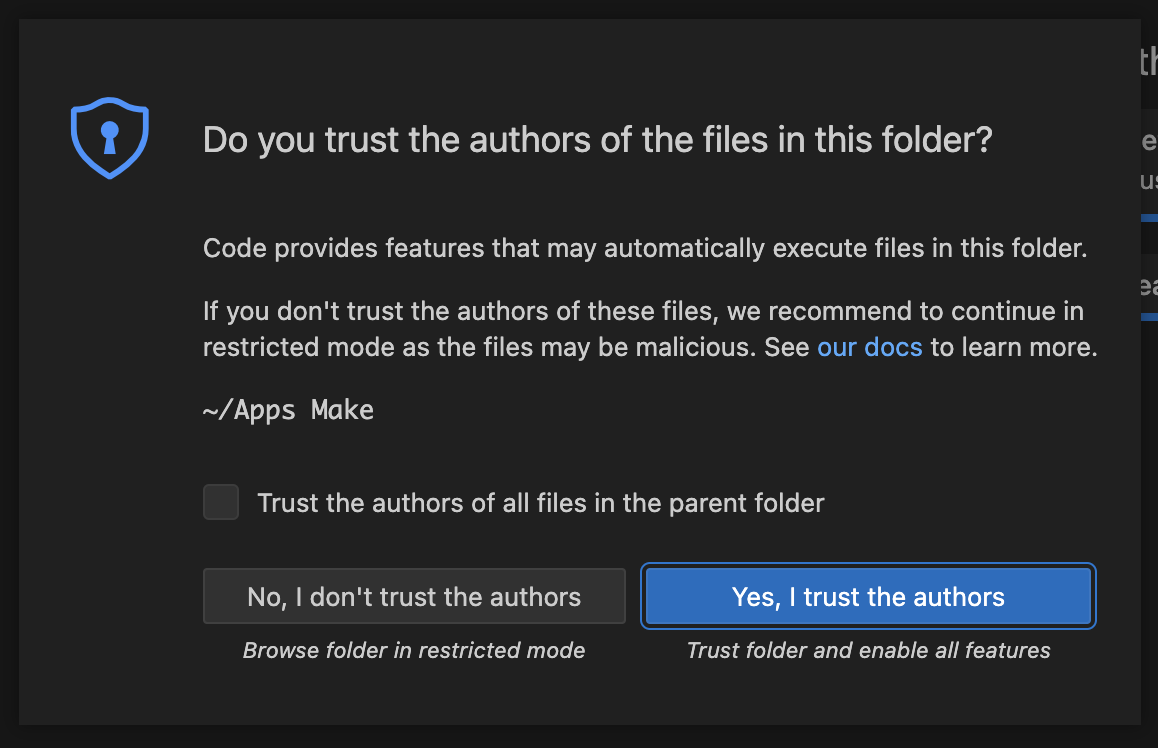 The current local directory in Visual Studio is set.
.png?alt=media) 3. In the pop-up window, click "Yes, I trust the authors" option.
3. In the pop-up window, click "Yes, I trust the authors" option.
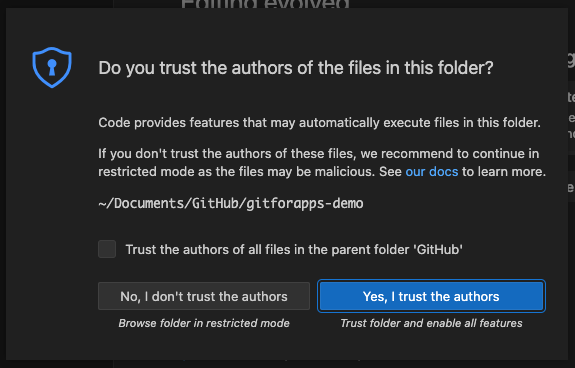 The current repository in Visual Studio is set.